Templates
On this page
A template is the look of your whole website: fonts, shapes, the style of the header and footer, and, if you choose, a menu, a sidebar, a footer and some page starters. It is a ready-made outfit. You try it on, and you can take it off again.
Only Managers and Owners can open Templates. Editors never see it.
Templates Link to this section: Templates
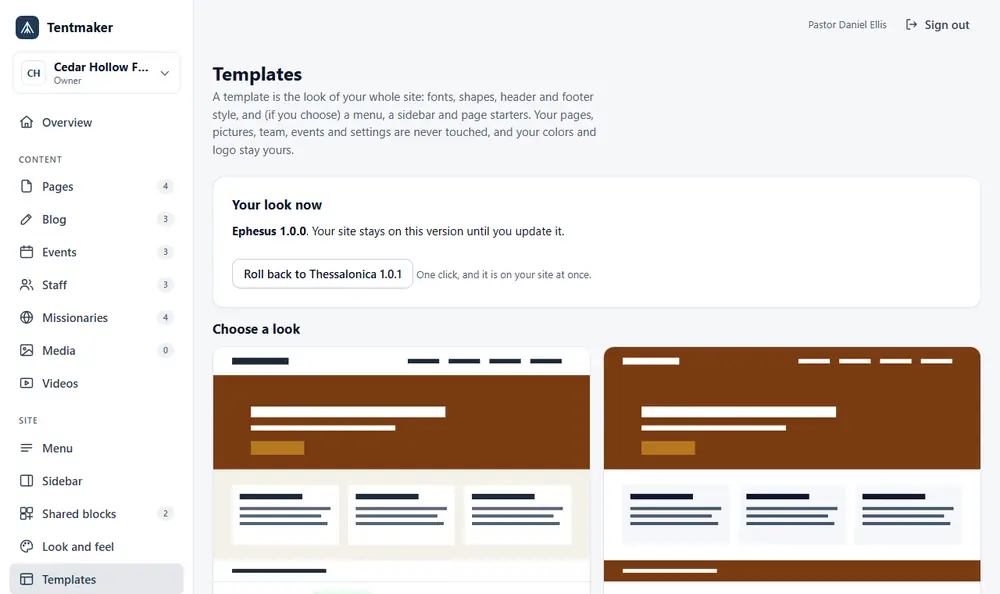
Open Templates in the left menu, under Site.
What a template changes, and what stays yours Link to this section: What a template changes, and what stays yours
A template changes how the site looks. It never touches what you wrote.
| A template can change | Always stays yours |
|---|---|
| Fonts, corner shapes, shadows, buttons | Every page, post, picture, person and event |
| The style of the header, footer and menu | Your Settings: name, address, phone, email, service times |
| Page width, the background, banners | Your colors and your logo (unless you choose the template's colors) |
| A default menu, sidebar and footer, only if you tick them | Your light or dark choice |
| Page starters that appear under New page | Who is on your team, your modules, your redirects and your domain |
Two more things to know:
- Your own choices on Look and feel for fonts, corners, the header and the page frame are changed when you apply a template. The screen lists them: "Your own changes that the template replaced".
- Your custom CSS is kept. It was written for your old look, though, so it may not fit the new one. You can look at the new look without it first, and you can turn custom CSS off (see Custom CSS and embeds).
Your look now Link to this section: Your look now
At the top, Your look now says which template your site uses and its version. Your site stays on this version until you update it. If you have not applied a template, it says which of Ephesus, Corinth or Colossae you chose under Look and feel.
Choose a look Link to this section: Choose a look
Under Choose a look, each template has a card with a picture, a short description, who made it, and what it brings (for example a menu, a sidebar, a footer and a number of page starters). A badge says Your look on the one you use.
Press Preview with my site to see the template with your own pages, team, events and pictures. Nothing changes until you press the button that applies it.
Applying a template Link to this section: Applying a template
- Press Preview with my site on a template.
- Under What happens, the design, fonts and styles always change. Tick Use the template's colors only if you want its colors instead of yours. Off, your main color, accent color and logo stay exactly as they are.
- Under Also bring, tick any of The default menu, The default sidebar, The footer and the page starters. Each is explained on the screen. All are optional.
- The default menu replaces your published menu, and your old menu stays in its history.
- The default sidebar is saved as a draft, with sample words for you to replace.
- The footer is added as a new shared block and used as your footer. Your old one is kept.
- Page starters are offered under New page. Nothing is added to your site until you make a page from one.
- Under How to preview, choose the page, light or dark, and computer or phone width. The preview on the right updates.
- Press Use this look. It asks you to confirm. The new look is live at once.
A message tells you it is done, and reminds you that Roll back goes back in one click.
Updates Link to this section: Updates
When the maker of your template releases a newer version, nothing changes on your site by itself. Instead:
- The Overview and the Templates screen show a notice: "An update is ready".
- You can press Preview the update to see it with your own site first.
- When you are ready, press Update. On an update, the menu, sidebar, footer and page starters are left unticked, because you may have changed them. Tick one only if you want the new version of it.
If you do not like the result, roll back (see below).
Under Updates by email, you can choose whether the owners of the church get an email when a newer version is installed.
Rolling back Link to this section: Rolling back
If you do not like a new look or an update, press Roll back to the earlier version. It is on the Templates screen under Your look now. It asks first, then puts your site back on the look it had before. Your pages and pictures are not touched. If you changed your menu, sidebar or footer after applying the template, those are kept as they are now.
If there is nothing earlier, the screen says "There is no earlier look to go back to."
History Link to this section: History
At the bottom, History lists every apply, update and roll back, with the date, who did it, what it brought, and any of your own changes the template replaced.
Where templates come from Link to this section: Where templates come from
Five templates come with Tentmaker: Ephesus, Corinth, Colossae, Philippi and Thessalonica (a header that floats over a tall photo banner, a glass strip of service times and a cream page; it uses your main color for the dark parts and your accent color for buttons). New ones are installed by the platform's administrator, who is not a member of your church. Your church's pages are never touched by that.