Members and roles
On this page
Everyone who can sign in to your church's Tentmaker is on the team. Each person has one role. The role decides what they can see and change.
Members Link to this section: Members
Open Members in the left menu, under Church. Everyone on the team can open it. It has four parts.
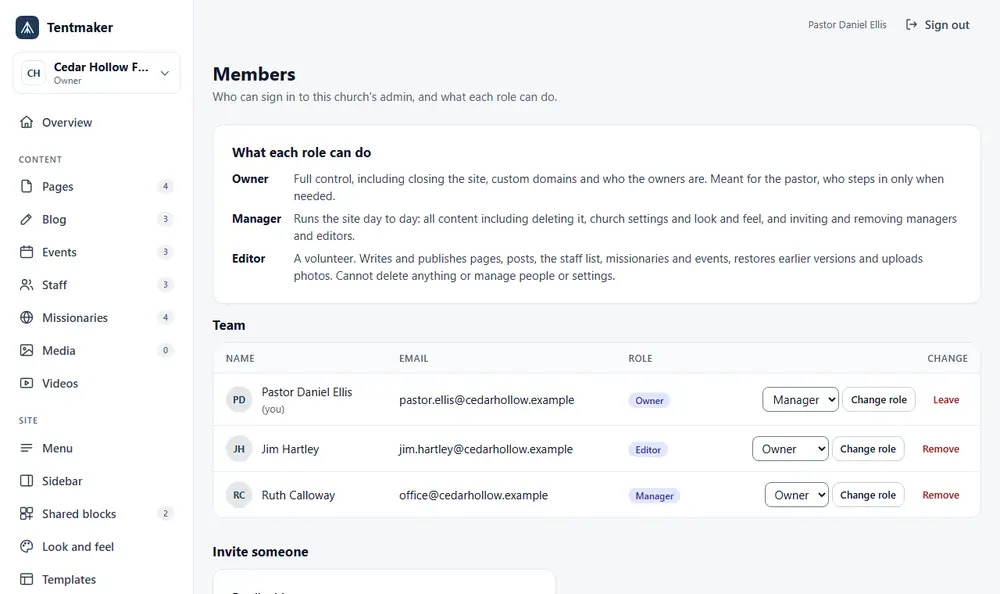
- What each role can do is a short reminder of the three roles.
- Team lists everyone: Name, Role and, for Managers and Owners, Email and a Change column.
- Invite someone, for Managers and Owners.
- Waiting to accept, for Managers and Owners: invitations that have not been used yet.
An Editor sees the list of names and roles, and a note: "Only managers and owners can invite people or change roles."
The three roles Link to this section: The three roles
- Owner: full control, including closing the site, downloading a copy of it, the custom domain and who the other owners are. This is meant for the pastor, who steps in only when needed.
- Manager: runs the site day to day. All content, including deleting it, church settings and look, and inviting and removing managers and editors.
- Editor: a volunteer. Writes and publishes pages, posts, the staff list, missionaries and events, restores earlier versions and uploads photos. Cannot delete anything or manage people or settings.
What each role can do Link to this section: What each role can do
This table is taken from the one list that Tentmaker's code checks for every request (packages/core/src/roles.ts). It is not a promise made up for this guide. A button that a role may not use is hidden, and the server refuses it anyway.
| What you want to do | Owner | Manager | Editor |
|---|---|---|---|
| See the Overview, the pages, and the names and roles of the team | yes | yes | yes |
| Create and edit pages, blog posts, staff, missionaries and events, including ones that are live | yes | yes | yes |
| Preview, and choose a page's layout and its own sidebar | yes | yes | yes |
| Make, edit and publish shared blocks | yes | yes | yes |
| Publish or unpublish a page or a blog post | yes | yes | yes |
| Restore an earlier version of a page or a shared block | yes | yes | yes |
| Upload pictures and videos, and add captions | yes | yes | yes |
| Delete a page, post, person, missionary, event, shared block, picture, video or captions for good | yes | yes | no |
| Church Settings, and Look and feel | yes | yes | no |
| Templates: apply, update and roll back a look | yes | yes | no |
| Menu: arrange, save, publish and restore | yes | yes | no |
| Sidebar: edit, save, publish and restore the site-wide sidebar | yes | yes | no |
| Custom CSS: edit, publish, safe mode | yes | yes | no |
| Embeds: change the list of allowed sites, and Allow this host | yes | yes | no |
| Redirects: add, change, turn off, delete | yes | yes | no |
| Modules: turn an optional part on or off | yes | yes | no |
| See the email addresses on the team list | yes | yes | no |
| Invite, change the role of, and remove Editors and Managers | yes | yes | no |
| Make someone an Owner, change or remove an Owner | yes | no | no |
| Activity: read what the team has done | yes | yes | no |
| Settings, Safety-net emails: read them | yes | yes | no |
| Change the safety-net emails, and which owners get them | yes | no | no |
| Domain: manage a custom domain | yes | no | no |
| Download my site: ask for a copy of everything the site owns, take it and delete it | yes | no | no |
| Close the site | yes | no | no |
An Editor can place an embed from a site that is already allowed, but cannot change the list.
What each role sees in the left menu Link to this section: What each role sees in the left menu
| Menu item | Owner | Manager | Editor |
|---|---|---|---|
| Overview, Pages, Blog, Events, Staff, Missionaries, Media, Videos, Shared blocks, Members | yes | yes | yes |
| Menu, Sidebar, Look and feel, Templates, Custom CSS, Embeds, Redirects, Activity, Modules, Settings | yes | yes | no |
| Domain, Download my site | yes | no | no |
Missionaries, Videos and Embeds are optional parts of the site and can be turned off (see Modules).
Who can change whom Link to this section: Who can change whom
- An Owner can change or remove anyone, including other Owners.
- A Manager can change or remove Editors and other Managers. A Manager can never touch an Owner, can never make someone an Owner, and cannot change or remove themselves.
- An Editor can change no one.
- A church always keeps at least one Owner. You cannot demote or remove the last one. The screen says: "A church must always have an owner. Make someone else an owner first." To hand over, make the new person an Owner first, then step down.
Inviting someone Link to this section: Inviting someone
- Open Members.
- Under Invite someone, type their Email address and choose a Role. Editor is chosen to begin with. Only an Owner can choose Owner.
- Press Send invitation. "Invitation sent. The link works for 7 days."
The person gets an email. They press the link, then Accept invitation, and they are signed in (see Getting started).
Under Waiting to accept, you can see each open invitation and when it expires. Press Cancel to withdraw one. An invitation only works while the person who sent it could still send it. If you remove a manager, that manager's open invitations stop working too.
Changing someone's role Link to this section: Changing someone's role
On the Team list, in the Change column, choose the new role and press Change role. It says "Role updated." Only the roles you are allowed to give are listed.
Removing someone Link to this section: Removing someone
Press Remove beside their name. It asks "Remove (the person) from the team?" and then says "Removed from the team." They can no longer sign in to your church. Nothing they wrote is deleted. If you are leaving the team yourself, the button says Leave.
Every role change and removal is recorded, with who made it.
Related Link to this section: Related
- For the pastor: your safety net.
- One-page quick references: Editor, Manager and Owner.