Getting started
On this page
This page takes you from your first sign-in to your first published change. It takes about ten minutes to read.
Signing in with the emailed link Link to this section: Signing in with the emailed link
There is no password to remember. You sign in with a link that Tentmaker emails you.
- Open your church's Tentmaker address in your browser. The person who set up your site gave it to you. It ends with
/login. - Type your email address in the Email address box and press Email me a sign-in link.
- Open the email. The link works once and expires in 15 minutes.
- The link opens a page called Sign in to Tentmaker. Press Continue to finish.
You stay signed in on that device for 30 days. Press Sign out at the top right when you use a shared computer.
If the email does not come, look in your spam folder. The screen gives the same answer whether or not your address is on a team, so a wrong address does not tell anyone anything. If the link says it has expired or was already used, request a new one.
Joining a team Link to this section: Joining a team
If someone invited you, you will get an email with a link called Join the team. Press Accept invitation. The link works for 7 days. After that, ask the person who invited you to send a new one.
Starting a brand new site Link to this section: Starting a brand new site
If your church does not have a site yet, you start one yourself from the Start your church's website page. You land on a Welcome to Tentmaker screen, and the Overview shows a Setup checklist until the basics are in place. Both are explained in Starting a new site.
Several churches Link to this section: Several churches
If you help more than one church, you land on Your churches after you sign in. Pick one. You can switch later from the church name at the top of the left menu. If you belong to only one church, you go straight to it.
The left menu Link to this section: The left menu
The left menu lists everything you can do. It has five groups. You only see the items your role allows (see Members and roles).
| Group | Items |
|---|---|
| (top) | Overview |
| Content | Pages, Blog, Events, Staff, Missionaries, Media, Videos |
| Site | Menu, Sidebar, Shared blocks, Look and feel, Templates |
| Advanced | Custom CSS, Embeds, Redirects, Domain |
| Church | Members, Activity, Modules, Download my site, Settings |
Small numbers beside an item are counts, such as how many pages you have.
At the bottom of the menu are View site, which opens your public website in a new tab, Help, which opens this guide in a new tab, and Collapse menu, which makes the menu narrow on a big screen.
Missionaries and Videos are optional parts of the site (see Modules). If your church has turned one off, its menu item is gone.
On a phone or tablet Link to this section: On a phone or tablet
On a small screen the menu hides. A bar along the bottom keeps four places close: Overview, Pages, Blog and Events. The More button opens the whole menu.
The Help buttons Link to this section: The Help buttons
Next to the title of almost every screen is a small round button with a question mark. Its name is Help for this screen. It opens the part of this guide that explains that screen, in a new tab, so the screen you were working on stays exactly as you left it. In the page editor the button is in the top bar, and each of the tools down the left (Add, Layers, Starters, History) and the Page tab has its own help for just that part.
A few confusing choices also have a short Learn more link beside them, such as the page layouts, the sidebar choice, the template's colors and a video's captions. They open the exact heading that explains the choice.
The button is the same for everyone, whatever your role. It does not send the guide your church's name, your name or the page you were on, and the guide is a plain website with no sign-in. The platform's own administration screens have no Help button, because this guide is for the people who look after a church's site.
The Overview Link to this section: The Overview
Overview is the first screen. The church name sits under the title, with a New page button.
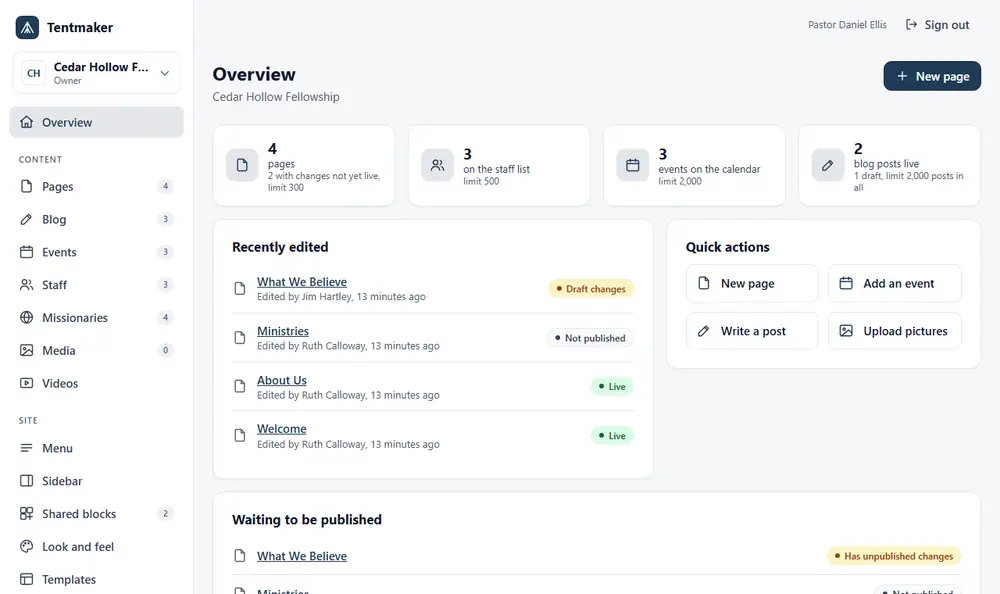
- Four boxes count your pages, your staff, your events and your live blog posts. The page box tells you whether any pages have changes that are not live yet.
- Recently edited lists the pages touched most recently, who edited them and when.
- Quick actions has shortcuts: New page, Add an event, Write a post and Upload pictures.
- Waiting to be published lists pages with changes that visitors cannot see yet. If everything is live it says "Everything you have written is live."
A Manager or Owner may also see a notice that a newer version of the site's look is ready (see Templates).
What Live and Draft mean Link to this section: What Live and Draft mean
A page can be in one of three states. You will see these words everywhere.
- Not published: the page exists, but visitors cannot see it.
- Live and up to date: visitors see the page, and it matches what you see in the editor.
- Live, with newer draft: visitors see an older version. You have changes that are not live yet.
Think of it as two copies. The live copy is what visitors see. The draft is your working copy. You can change the draft as much as you like and nobody sees it until you publish.
The page list also shows these as Live, Draft changes and Not published, and has buttons to show only one kind.
How publishing works Link to this section: How publishing works
When you edit a page:
- Tentmaker saves your work to your own working copy a couple of seconds after you stop typing. The editor shows Saved and the time. This is not live.
- Save draft keeps a numbered version in the page's history. Visitors still see the old page. The editor says "Draft saved. Visitors still see the published page."
- Publish makes the draft live. First, Tentmaker checks the page and lists anything that must be fixed (a picture with no description, for example). If everything passes, it says "Published. Visitors now see this."
If you press Publish and nothing changed, it says "Nothing had changed, so there was nothing to publish."
Other things work a little differently, so you are never surprised:
- Staff, missionaries and events have no draft. When you press Save, the change is on the website at once. The event form says so: "Saving puts the event on the site right away."
- A blog post has two states, Draft and Published. Saving a published post updates the live post at once.
- The menu, the sidebar and custom CSS work like pages: Save draft first, then Publish.
- The text of Settings and Look and feel goes live as soon as you save.
Undo and history Link to this section: Undo and history
You have three safety nets.
- Undo and redo. In the page editor, the arrow buttons at the top (or Ctrl+Z, and Ctrl+Shift+Z to redo) step back through what you did in this visit. They forget everything when you close the page.
- Delete with a way back. If you delete a block, a message says "Deleted" and offers Undo for ten seconds.
- Version history. Every time you save a page, Tentmaker keeps that version. Open History in the editor to see when, who and what state. Press Preview to look at an old version, or Restore to make it your working copy. Restoring never goes live by itself: you review it and then publish.
The same history, with the same Restore button, exists for shared blocks, the menu, the sidebar and custom CSS. It does not exist for staff, missionaries, events and blog posts. For those, an edit replaces the old words.
Deleting a page, a post, a person, an event or a picture is for Managers and Owners only, and it cannot be undone.
Where next Link to this section: Where next
- Editing pages to build your first page.
- Blocks to see what you can put on it.