Media
On this page
Pictures and videos live in your library. You upload a file once and then use it as many times as you like: on a page, in a gallery, on the staff list, on a missionary or on an event.
Anyone on the team can upload. Only Managers and Owners can delete.
Media Link to this section: Media
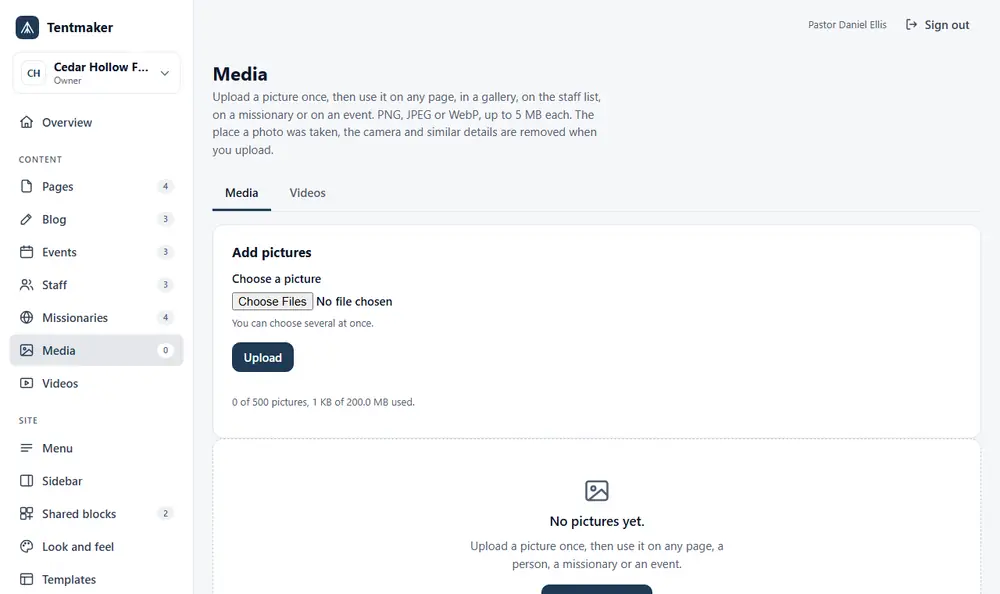
Open Media in the left menu, under Content. If your church uses video, two small tabs sit at the top: Media and Videos.
Uploading pictures Link to this section: Uploading pictures
- In Add pictures, press the file box under Choose a picture. You can pick several files at once.
- Press Upload.
- A message says "Picture added to your library." If you uploaded the same picture before, it says "That picture was already in your library, so nothing new was added."
Where you work on a page or a person, you can also press Choose from your library (or Choose from your pictures) and upload from there.
Sizes and limits Link to this section: Sizes and limits
- PNG, JPEG or WebP only. GIF files are not accepted. SVG files are not accepted either, because they can carry hidden code.
- Up to 5 MB for each file.
- No more than 8,000 pixels on a side.
- A church can keep 500 pictures, up to 200 MB in all. The screen shows how much you have used, such as "12 of 500 pictures, 4.1 MB of 200 MB used."
- You can upload 60 pictures an hour.
- If your church needs more room, the people who run Tentmaker can raise the number of pictures or the space for your church.
Tentmaker does not shrink your pictures. A smaller file loads faster on a phone, so if a photo comes straight from a camera, save a smaller copy first. Saving a picture about 1,600 pixels wide is plenty for most pages.
Why the hidden details are removed Link to this section: Why the hidden details are removed
A photo taken on a phone usually carries hidden details: the place it was taken, the time, the kind of phone. These details are called EXIF. Anyone who downloads the picture from your website could read them, and a photo taken at someone's home could show where they live.
So Tentmaker removes them when you upload. The picture looks the same. Only the hidden labels are gone. If the photo was turned on its side by the phone, that one detail is kept so the picture does not tip over.
Looking at a picture Link to this section: Looking at a picture
Press a thumbnail to open a larger preview. It shows the picture, its name, its size and a link to the original. Previous and Next move through the library.
Deleting a picture Link to this section: Deleting a picture
Managers and Owners see a Delete button on each picture. It asks "Delete this picture for good? It cannot be undone." If a page, a shared block, the staff list, a missionary or an event still uses the picture, Tentmaker will not delete it. It tells you where it is used. Take it off those places first, then delete it.
Descriptions and captions Link to this section: Descriptions and captions
When you put a picture on a page, the block asks you to Describe the picture. This is the text that is read aloud to people who cannot see it. Write what is in the picture, in a few words: "The choir singing on Easter morning". A picture can also have a Caption, which everyone sees under it. The page will not publish until each picture has a description, unless you tick This picture is only decoration.
Videos Link to this section: Videos
Open Videos (under Content, or the tab on the Media screen). Use it for short films of your own, such as a welcome or a testimonial. Sermons and audio are not kept here. They belong on your AmenPreacher page.
Uploading a video Link to this section: Uploading a video
- Under Add a video, press the file box under Choose an MP4 video.
- Press Upload video. A progress bar shows how far it has gone.
- When it is done, a message says "Video added. Add captions below, then place it on a page with the Hosted video block."
The file is sent in pieces. If your connection drops or you reload the page, choose the same file again and it carries on where it stopped. Press Cancel upload to stop.
What kind of video works Link to this section: What kind of video works
- MP4 files only, up to 250 MB each. A church can keep 40 videos, up to 1 GB in all.
- H.264 video and AAC sound, 1080p or smaller.
- "Set up for the web" (also called Fast Start), so a phone can start playing before the whole file arrives.
Tentmaker does not convert videos. If your file is the wrong kind, it tells you why. The How to make a video that works note on the screen lists easy ways to make a good one: HandBrake (free, with its Fast 720p30 preset and Web optimized ticked), the iPhone's Most Compatible camera setting, or ffmpeg.
Keep your original. Tentmaker keeps one copy for your site, not a backup.
Captions Link to this section: Captions
Captions are the words of a video, as text. They help people who are deaf or hard of hearing, and anyone watching with the sound off. The checklist warns you when a hosted video on a page has none, and you can still publish.
- Get a captions file in the WebVTT format (its name ends in
.vtt). YouTube Studio can download one. - On the video's card, under Captions, choose the Captions file (.vtt).
- Check the Language code (for example
en) and the Name shown in the player (for example English). - Press Add captions.
A video can have up to three caption files. Adding a second file for the same language replaces the first. A card shows Captions added or No captions yet.
If a video has no speech, such as a slideshow with music, tick This video has no speech to caption on the Hosted video block instead.
Deleting Link to this section: Deleting
Managers and Owners can delete a video or its captions. A video that a page, a shared block or the sidebar still uses cannot be deleted. Take it off first.
If your church has turned off the Video module, the Videos screen and the Hosted video block are hidden (see Modules). Your uploaded videos stay safely stored.