Events and the blog
On this page
Events and blog posts are not pages. Each has its own screen. Anyone on the team can add and edit both. Only Managers and Owners can delete.
Events Link to this section: Events
Open Events in the left menu, under Content. It lists your events with the date and time under When, and whether each one is Showing on the site or Ended.
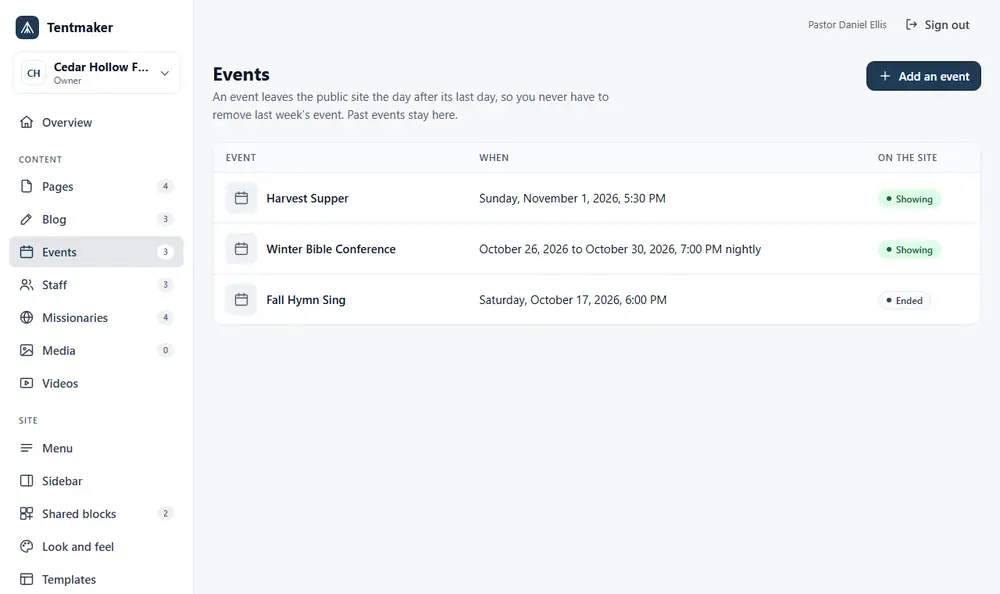
An event leaves your public website the day after its last day, so you never have to remove last week's event. It stays on this screen, so you can copy it for next year. The "day" is your church's own day, in the timezone you chose in Settings.
Adding an event Link to this section: Adding an event
- Press Add an event.
- Fill in the form.
- Title and Date are required.
- Last day (if more than one day): only for an event that runs over several days.
- Time is plain words, such as 6:30 PM or 9 AM to noon. Phones and calendar apps read the start (and the end) from it. If they cannot, the event goes into their calendar as an all day entry with your words beside it.
- Where.
- Details: a few lines about the event.
- Repeats: leave it on Does not repeat, or see the next part.
- Picture (optional): press Choose from your pictures, or paste the address of a picture that is already online.
- Check the preview on the right.
- Press Save.
Saving puts the event on the site right away. There is no draft.
An event that repeats Link to this section: An event that repeats
Under Repeats, choose how often:
- Every week, on the days you choose, such as every Sunday, or every other Wednesday (put 2 in Every).
- Every month, on a day of the month, such as the 15th, or the last day of the month.
- Every month, on a certain weekday (the second Sunday), such as the first Monday or the last Friday.
- Every year, on this date.
Then choose when it stops: show it for the next 12 months (you can choose from 3 to 24, and it keeps going after that), On a date, or After a number of times. A sentence under the boxes says what you chose, such as "Every week on Sunday, shown 12 months ahead", and The next dates lists the next five, so you can see at once that it is right.
A month that does not have the day you asked for is skipped: a repeat on the 31st has no April. A repeat on the 5th Sunday only happens in months that have one. Use The last day of the month or last for those.
A repeating event leaves the site the same way a single one does, date by date: each date goes the day after it. When its last date has passed, the whole event goes, and it shows as Ended here.
Skipping, cancelling or changing one date Link to this section: Skipping, cancelling or changing one date
Open a repeating event. Under Dates of this event are its next dates, each with buttons:
- Skip takes that date off the calendar altogether, as if it never happened.
- Cancel this date keeps it on the site, marked as cancelled, so people who planned to come can see it is off.
- Edit this date opens a small form for that date alone: a different title, time, place or details (for example "Thanksgiving Eve Service, 7:00 PM"). Leave a box empty to keep the event's own words.
- Put back undoes any of these.
Everything else about the repeat stays as it is. Skipped, cancelled and changed dates at the bottom lists all of them. Editors can do all of this.
Editing and deleting an event Link to this section: Editing and deleting an event
Press an event's title to change it. Managers and Owners see a Delete button. For an event that repeats it asks "Delete this event and every date of it?"; for any other it asks "Delete this event?"
Following your calendar on a phone Link to this section: Following your calendar on a phone
Your Events page has a link, Subscribe to this calendar. A visitor who presses it can add your church's calendar to the calendar app on their phone or computer, and it stays up to date. Every event on that page also has Add to calendar, which gives that one date as a file. Cancelled dates have none. Nothing you do on the Events screen needs to change for this: it follows your events by itself, for the next 12 months. A calendar app decides how often it asks for changes, so a change you make can take some hours to reach someone's phone.
Showing events on a page Link to this section: Showing events on a page
Add the Upcoming events block to any page (see Blocks). It lists the next events, and past ones drop off by themselves. An event that repeats shows once, at its next date, unless you choose to show every date. To show a whole month at a glance, add the Month calendar block instead. If your menu has an Events entry, it opens the full list.
Blog Link to this section: Blog
Open Blog in the left menu, under Content. Posts have a Status of Draft or Published, and a date.
Writing a post Link to this section: Writing a post
- Press New post.
- Fill in the form.
- Title.
- Written by starts as your own name. Change it if someone else wrote it.
- Post is the text. The same simple bar of Bold, Italic, Heading, lists, Quote and Link is there.
- Press Save draft to keep it private, or Publish to put it on your website.
A draft stays private until you publish. A published post shows Published next to its title. If you change a published post, the button reads Save changes, and saving updates the live post at once. The screen reminds you: "This post is published. Saving changes updates the live post right away."
To take a post off the site, press Unpublish. It asks "Take this post off the site?" and the post goes back to a draft.
Managers and Owners can Delete post. It asks "Delete this post for good?" That cannot be undone.
Search and sharing for a post or an event Link to this section: Search and sharing for a post or an event
An existing post or event has a Search and sharing card under its form, with Search description (optional), Share picture (optional) and a switch to hide it from search engines. Save the post or event first, then fill it in; press Save search and sharing. For a post, the description and picture are used when its link is shared and in search results. For an event, they are used in the details search engines read from your Events page; hiding an event leaves it out of those details, and it still shows on your page and in your calendar. Anyone who can edit can use it. See Settings and branding.
Showing posts on a page Link to this section: Showing posts on a page
Add the Recent posts block to a page. Your menu can also have a Blog entry. The blog page lists published posts, newest first.
Posts have no version history. If you need to keep an old version, copy the text somewhere safe before you change it.