The menu
On this page
The menu is the row of links at the top of every page on your website. Managers and Owners arrange it on the Menu screen. Editors cannot open it, but they can still use Show in the menu on each page (see below).
Menu Link to this section: Menu
Open Menu in the left menu, under Site.
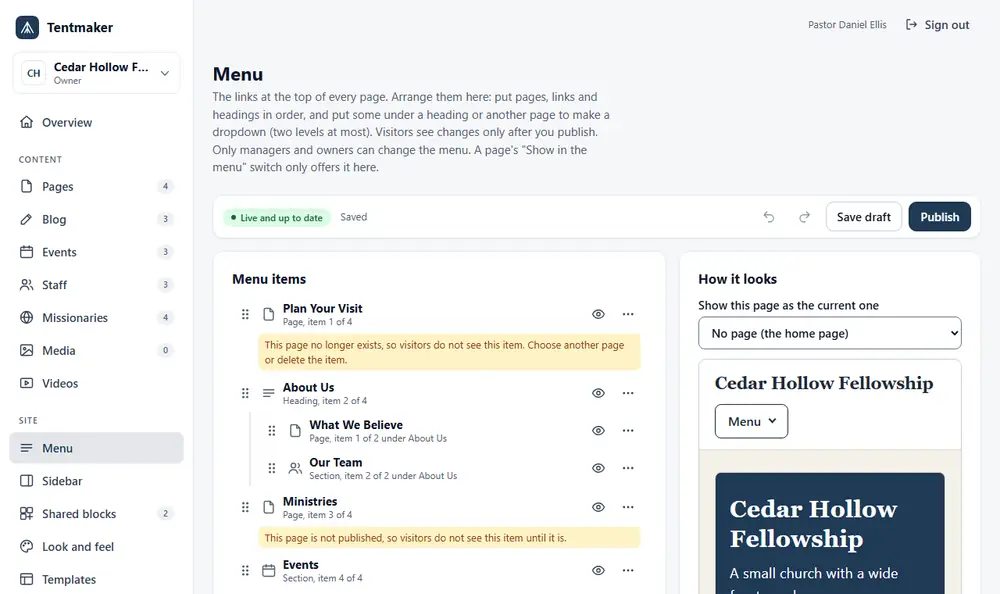
The screen has two halves. On the left is your list of Menu items and a box called Add to the menu. On the right, How it looks shows a sample page with your menu as you arrange it. Links in the sample do nothing. It is only a preview.
The state of the menu Link to this section: The state of the menu
A badge at the top tells you where things stand:
- Not published: visitors see the menu as it always was. You have not published a menu yet. Until you do, the menu is built from pages marked Show in the menu.
- Live, with newer draft: you have changes that visitors cannot see yet.
- Live and up to date: visitors see exactly this menu.
When you open the screen for the first time, it shows the menu your site has now. Nothing is saved until you press Save draft.
Arranging the menu Link to this section: Arranging the menu
Each row is one menu item. You can:
- Drag it by the six-dot handle.
- Press the More button (three dots) and choose Move up or Move down. Alt+Up and Alt+Down also work on the row.
- Press the eye button to Hide an item from visitors. Press it again to show it. A hidden item stays in your list so you do not have to build it again.
- Choose Put under... in the More menu to make an item sit under another one. That makes a dropdown.
- Press Edit in the More menu, or press the item's name, to change its words or its page.
- Press Delete to remove it from the menu. A message says "Deleted" and offers Undo. Deleting an item from the menu does not delete the page.
Rows carry short notes when something is off. For example, "This page is not published, so visitors do not see this item." Heed them, since visitors will not see that item.
Dropdowns Link to this section: Dropdowns
A dropdown is a heading with items under it. A menu can go two levels deep, no more. A dropdown opens when a visitor clicks or taps its button, or presses Enter or Space on it; pointing at it does nothing. Pressing Escape, or clicking anywhere else, closes it, and the keyboard goes back to the button. A heading is the button itself. A menu item that is also a page keeps its link, and a small arrow button beside it opens the dropdown. On a phone, the whole menu folds behind a Menu button, and a dropdown opens under its row.
To make one:
- Add a heading (see below).
- On each page you want inside it, open More, choose Put under... and pick the heading.
A heading has no page of its own. If nothing visible is under it, visitors do not see it. To move an item back out, choose Put under... and then The top level.
Adding to the menu Link to this section: Adding to the menu
In Add to the menu:
- A page: pick a page from the list and press Add page.
- Buttons that begin with Add for the built-in sections: Our Team (your staff list), Events and Blog. A section appears in the menu only when it has something to show. A button disappears once that section is in your menu.
- A link to another site, an email or a phone number: type the Words to show and the Address. The address must start with https://, mailto: or tel:. Tick Open in a new tab if you want one. Press Add link.
- A heading for a dropdown: type the Heading words and press Add heading.
The menu holds at most 12 items across the top, 12 under any one heading and 60 in all. Words in an item can be 40 letters at most.
Pages marked "Show in the menu" Link to this section: Pages marked "Show in the menu"
Any person who edits a page can tick Show in the menu on it. Before you have published a menu, that tick is what puts a page in the menu. Once you publish a menu, the tick only offers the page here. A box called Pages marked "Show in the menu" that are not in it yet lists them. Press Add beside the ones you want.
Publishing the menu Link to this section: Publishing the menu
The menu works like a page:
- Save draft keeps your work. Visitors do not see it.
- Publish makes it live. It asks "Publish the menu? Visitors will see it at once." and then says so when it is done.
The Undo and Redo buttons step through what you did in this visit. If someone else saved a newer menu while you worked, you see "Someone else saved a newer version of the menu." Open the newer version and make your changes again.
Version history for the menu Link to this section: Version history for the menu
At the bottom of the screen, Version history lists every save. Press Preview to see an old menu, or Restore to make it your draft. A restored menu is not live until you publish it.
Related Link to this section: Related
- The sidebar is a separate thing. See The site-wide sidebar.
- Who can do what is in Members and roles.