Editing pages
On this page
- Pages
- New page
- The editor
- Adding a block
- Selecting a block and the floating toolbar
- Typing on the page
- Moving blocks
- Keyboard shortcuts
- Layouts and the sidebar
- Page starters in the editor
- Shared blocks
- The Checklist
- Saving and publishing
- History and restoring a version
- Search and sharing for one page
- The phone and tablet preview
- Staff, events and the blog
A page on your website is a stack of blocks. A block is one piece: a paragraph, a picture, a button, your service times. You build a page by adding blocks and putting them in the order you want. Every block is explained in Blocks.
Pages Link to this section: Pages
Open Pages in the left menu. It lists everything on your site.
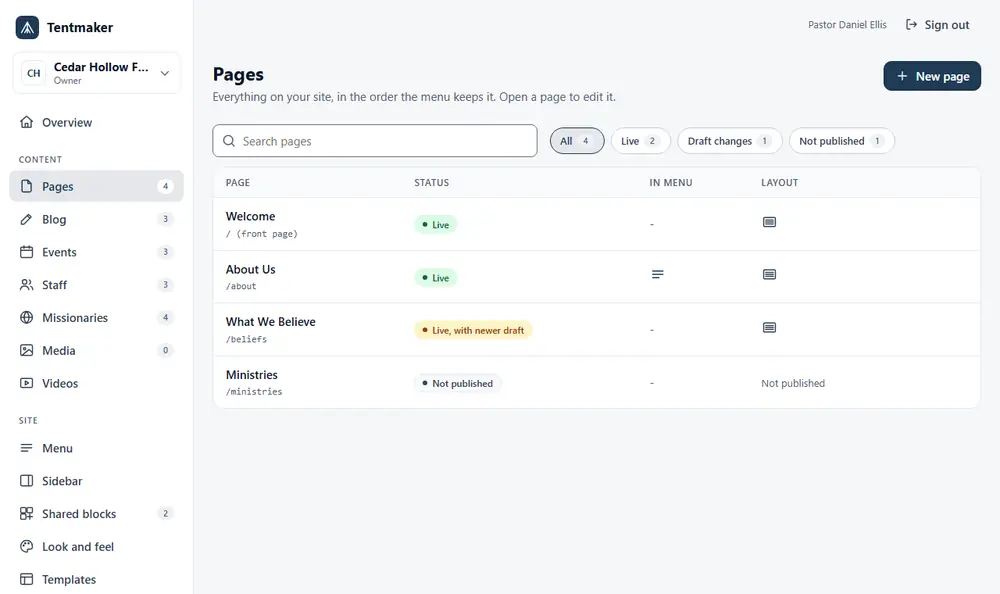
- Type in Search pages to find one.
- The buttons All, Live, Draft changes and Not published show only the pages in that state.
- The columns tell you the page's Status, whether it is In menu, and its Layout.
- Press a page's title to edit it. The small arrow icon opens the page on your real website in a new tab.
Press New page to make another one.
New page Link to this section: New page
Fill in the form from top to bottom.
- Title is the only required box.
- Web address (optional) is the end of the page's address. Leave it blank and Tentmaker makes one from the title. Use
homefor the front page's own words. - Show in the menu puts the page in your site's menu. A Manager can rearrange the menu later (see The menu).
- Layout is how wide the page is: Wide, Narrow, Sidebar left or Sidebar right. You can change it later without losing anything on the page.
- Page starter is where you begin. Blank gives an empty page. The ready-made starters (Home, About, Ministry, Events and Contact) give you blocks with sample words already in them. If your church uses a template that comes with its own starters, they are listed under its name.
Press Create draft. You land in the editor with your new draft.
A page starter is only a starting point. Once the page exists, nothing links it back to the starter.
The editor Link to this section: The editor
The editor has a few areas.
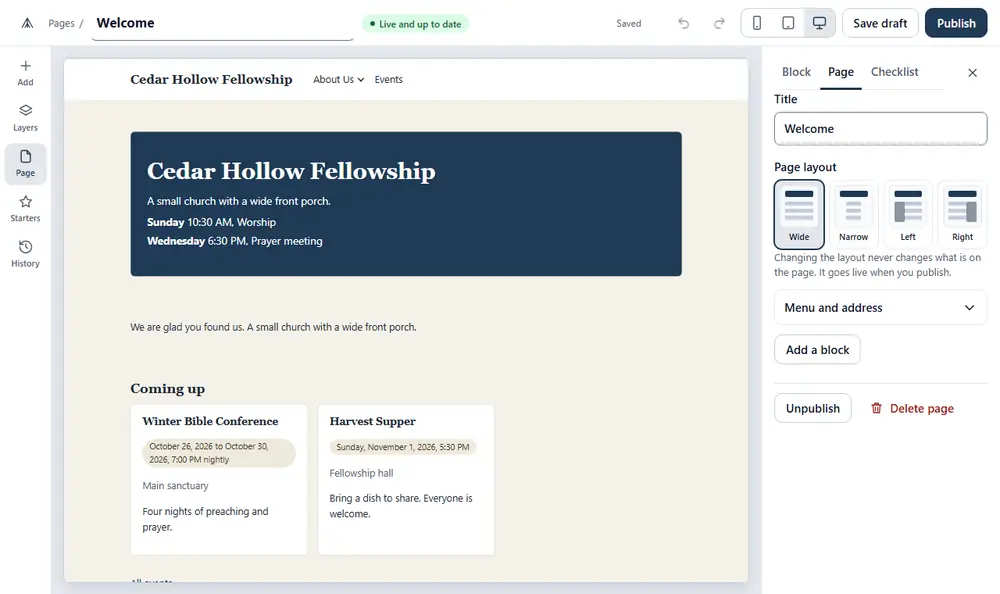
- The top bar has the page title, a badge for the page's state, the save status, Undo and Redo, the preview widths, Save draft and Publish.
- A strip of tools down the left: Add, Layers, Page, Starters and History. Each opens a panel.
- The big middle is your page, drawn the way visitors will see it.
- On the right, the inspector has three tabs: Block, Page and Checklist.
On a phone, the tool strip runs along the bottom and the panels slide up from the bottom of the screen.
Adding a block Link to this section: Adding a block
There are three ways.
- Press Add on the left strip. The panel Add a block opens. Press a tile to add that block. The panel says where it will go, for example "It goes at the end of the page." or "It goes after 'Welcome'."
- On a computer, drag a tile from the panel and drop it on the page. A line shows where it will land.
- On the page itself, press one of the small buttons that appear between blocks, whose words begin with Add a block, such as "Add a block here" or "Add a block at the end". On an empty page the button says Add the first block.
Tiles are grouped as Text, Pictures and video, Layout, Site info and Actions. Type in Search blocks to find one by name. Your shared blocks are in their own group (see below).
On a touch screen, tap a tile. Dragging a tile is only for a mouse or a pen. With a keyboard, move to a tile and press Enter.
A new block is selected as soon as it is added, so you can fill it in.
Selecting a block and the floating toolbar Link to this section: Selecting a block and the floating toolbar
Click a block on the page to select it. A small toolbar floats next to it. Its buttons are:
- Move up and Move down.
- Move to column, only for a block inside Columns.
- Move to sidebar, only when the page has its own sidebar, to move a block between the page and that sidebar.
- Duplicate, which makes a copy right after it.
- Make shared, which turns it into a shared block (see below).
- Settings, which opens the block's settings in the Block tab.
- Delete, which takes it off the draft. A message offers Undo for ten seconds.
The Block tab on the right has every setting for the selected block: words, pictures, links, sizes and backgrounds. Changes show on the page as you make them.
Typing on the page Link to this section: Typing on the page
On a computer, click a text block once to select it, then click again to type right on the page. Press Escape to stop typing. In longer text, a small bar gives you Bold, Italic, Heading, Bulleted list, Numbered list, Quote and Link.
On a phone, tapping a block selects it. Use the Block tab to change its words.
Moving blocks Link to this section: Moving blocks
You can move a block four ways. Use whichever is easiest.
- Drag it by the six-dot handle at its top left (the handle says "Drag to move").
- Press Move up or Move down on the floating toolbar.
- Hold Alt and press the Up or Down arrow key while a block is selected.
- Open Layers. It lists every block in order, and each row has up and down buttons. A block that is inside Columns is listed under its column.
Keyboard shortcuts Link to this section: Keyboard shortcuts
| Keys | What happens |
|---|---|
| Ctrl+S (Command+S on a Mac) | Save draft |
| Ctrl+Z | Undo |
| Ctrl+Shift+Z or Ctrl+Y | Redo |
| Alt+Up or Alt+Down | Move the selected block |
| Enter on a selected block | Open its settings |
| Escape | Stop typing, or close a panel |
Layouts and the sidebar Link to this section: Layouts and the sidebar
Open the Page tab (or the Page tool on the left) to change the page itself.
- Title and Page layout (the four choices from New page). Changing the layout never changes what is on the page. It goes live when you publish.
- Menu and address holds Show in the menu and shows the page's web address.
If you choose Sidebar left or Sidebar right, a Sidebar choice appears with three options:
- Site-wide: the same sidebar on every page that uses it. A Manager or Owner edits it (see The site-wide sidebar). If that is you, there is a link to it. Editors see a note that a manager does that.
- This page: blocks that only this page has. Press Add a block to this page's sidebar to fill it.
- None: the page is one column.
If you switch away from This page, the blocks in its own sidebar are kept, so you can switch back.
Not every block can go in a sidebar, and not every block can go in a column. The Add panel only offers what fits where you are adding. Blocks says which is which.
Page starters in the editor Link to this section: Page starters in the editor
The Starters tool lets you start from a page starter on a page that already exists. Choose one, then:
- Add a page starter's blocks puts its blocks after what you have.
- Replace the page with a page starter starts the page over. It asks you to confirm first. What was on the page stays in the history, so you can restore it.
Both make a new draft. Nothing goes live until you publish.
Shared blocks Link to this section: Shared blocks
A shared block is written once and used on as many pages as you like. A good example is your service times or a welcome note. Change it, publish it, and every page that uses it changes.
You can make one two ways.
- In the editor, select a block and press Make shared. Give it a name, then press Share it. The block moves into your library and the page uses it from there.
- Open Shared blocks in the left menu, press New shared block, give it a name and a kind, and press Create draft.
To use one on a page, open Add and look under Shared blocks.
Some things to know:
- A shared block on a page cannot be edited on the page. Its panel has a link that opens it in Shared blocks. Edit it there, then Save draft and Publish it.
- A page cannot go live while a shared block it uses has never been published. The Checklist tab offers Publish both to do the two together.
- Detach from this page turns it into an ordinary block on that one page. Later changes to the shared block will not reach it.
- Not every kind of block can be shared.
- A Manager or Owner can delete a shared block. If pages still use it, they can instead use Make it an ordinary block everywhere, which changes nothing for visitors.
- Each shared block has its own History with Restore.
The Checklist Link to this section: The Checklist
When you press Publish, Tentmaker checks the page. Problems that stop you are listed in the Checklist tab with a Show me button that selects the block. Examples are a picture with no description, a button with no words or link, a block still marked as sample text, or a shared block that has not been published.
Smaller suggestions, such as a heading that skips a level, are listed too, but they do not stop you.
Sample text comes from page starters. Change the words, or press This reads fine as it is if the sample is right for you.
Why pictures need a description: people who cannot see the page have it read aloud to them, and the description is what they hear. If a picture is only decoration, tick This picture is only decoration.
Saving and publishing Link to this section: Saving and publishing
- Tentmaker saves your work for you a couple of seconds after you stop. Look at the save status next to Undo. It says Saved, then the time.
- Save draft keeps a version in the history. Visitors do not see it.
- Publish puts it live. After a successful publish, a message offers View the page.
- If the page is live, the Page tab also has Unpublish, which takes it off the site. Its history is kept. You can publish it again at any time.
- Delete page is only for Managers and Owners. It removes the page and all its history for good.
If you close the page with changes that have not been kept, your browser asks if you are sure. If you come back later, you may see "Restored your unsaved changes" with Keep and Discard. That is your working copy from last time.
If two people edit the same page, the second to save sees a message: "Someone else saved a newer version of this page while you were working." They can press Open the newer version, or Save mine as a new draft.
History and restoring a version Link to this section: History and restoring a version
Open the History tool. Every save is in the list, with the time, who made it, the title, and a state: Live, Working copy or Was published.
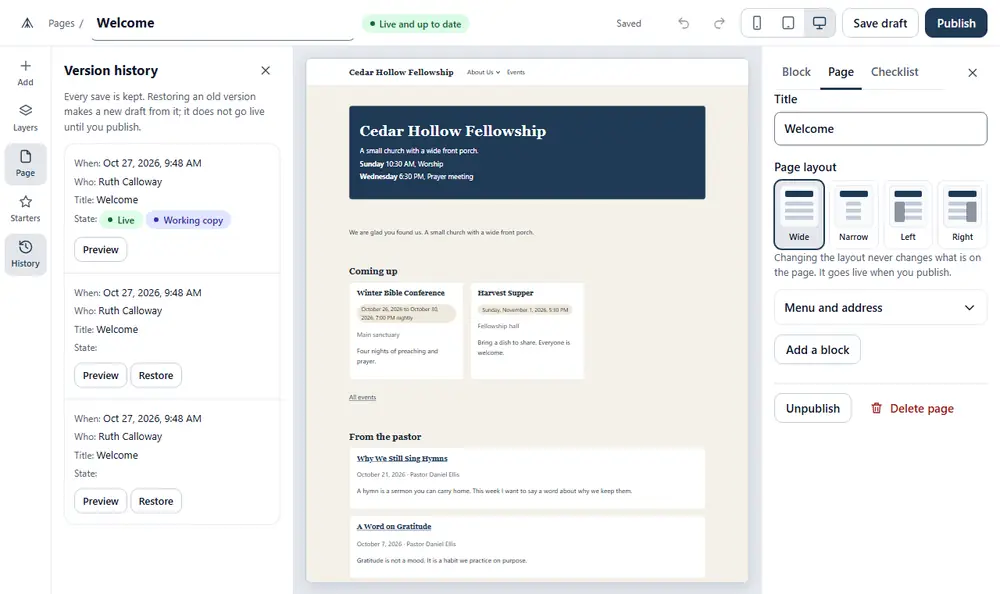
- Preview shows that version below the list.
- Restore makes it your working copy. It never goes live until you publish. If that old version used shared blocks, they will show what they say now, not what they said then.
Any role can restore a page version.
Search and sharing for one page Link to this section: Search and sharing for one page
The Page tab of the editor has a Search and sharing section for the page, with three things. Anyone who can edit pages can use it, including Editors.
- Search description (optional): one or two plain sentences about the page, up to 160 characters, with a counter as you type. Search engines often show it under the page's name. Left empty, the start of the page's own words is used, then the description from Settings.
- Share picture (optional): press Choose from your pictures. This is the picture that appears when the page's link is shared. Left empty, the one from Settings is used, then your logo.
- Hide this page from search engines: asks search engines not to list the page and leaves it out of the sitemap. The page still opens for anyone with the link.
Press Save search and sharing. These settings are saved on their own and apply to the live page right away, without Publish. They are not part of the page's history, so Restore does not change them. To hide the whole site, see Settings and branding.
The phone and tablet preview Link to this section: The phone and tablet preview
The three small icons in the top bar, Phone width, Tablet width and Desktop width, change how wide the page is drawn. Use them to check how the page looks on a phone (390 pixels wide) or a tablet (768 pixels). This is only a preview. It does not change the page.
Your church's custom styling (see Custom CSS and embeds) is not shown while you edit. Videos and maps from other sites show as a placeholder box. Both are fine on the real page.
Staff, events and the blog Link to this section: Staff, events and the blog
These are not pages. They have their own screens: see Staff and missionaries and Events and the blog.