Settings and branding
On this page
Two screens control the basics of your site: Settings holds the facts about your church, and Look and feel holds the colors, fonts and logo. Only Managers and Owners can open them. Changes on both go live as soon as you save. There is no separate Publish button.
Settings Link to this section: Settings
Open Settings in the left menu, under Church. The title on the screen is the same. It says what visitors see in the header, footer and on the front page.
The basics Link to this section: The basics
- Church name is required.
- Timezone decides when an event is over. An event ends the day after its date, by your clock. Choose the zone your church is in.
- Language of the site tells screen readers and browsers which language your pages are written in. English is the default. Choose the language most of your pages use, or Another language (type its code below) and write a code such as
es-MXorpt-BRin Language code, only for "Another language" (letters and hyphens only). It does not translate anything. Languages written right to left, such as Arabic and Hebrew, are not supported yet. - Tagline (optional) is a short line that the Welcome banner can show.
- Footer line (optional) is the words along the bottom of a footer that is in your main color. Write
{year}and Tentmaker puts in this year, such as "© {year} Your Church, Your Town". Left empty, it reads the year and your church's name.
Contact details Link to this section: Contact details
Address (optional), Phone (optional) and Public email (optional). The Contact information block, the footer and the Directions button use these. The public email is shown to visitors, so use one you want them to see.
Service times Link to this section: Service times
One line for each time you meet: a Day, a Time (such as 10:30 AM) and a Label (such as Worship). Leave a line empty to skip it. Press save to get more empty lines. You can list up to 12.
Your Service times block and the Welcome banner show these. Change them here once and every page that uses them is right.
Social links Link to this section: Social links
Choose a Network (Facebook, Instagram, YouTube, X, TikTok or Website) and paste its Address, which must start with https://. They show in your footer. You can list up to 8.
Press Save settings to save the four sections above. If something is wrong, a box at the top says "Nothing was saved yet. Please fix this:" and lists each problem.
Header Link to this section: Header
The phone number and one button shown at the top of every page beside the menu. Fill in Phone number (optional), Button words (optional) and Button goes to. Good words are Give or Plan a visit. The button's address can be a full web address, a page on your site such as /give, or an email or phone link. If you fill in the words you need the address too, and the other way round. Press Save header.
Phone action bar Link to this section: Phone action bar
A row of big buttons along the bottom of a phone screen. It only shows on phones, and only after it is turned on under Look and feel, in Scrolling, motion and focus (it is off until then). Tick Show a Call button (needs your phone number) and Show a Directions button (needs your address). Add a Watch button goes to (optional) address, such as your live stream. Press Save action bar.
Footer Link to this section: Footer
By default the footer shows your address, phone, email, service times and social links. You can choose one of your shared blocks to show there instead, such as a Columns block with your own wording. Until that block is published, the usual footer shows. Press Save footer.
Search and sharing Link to this section: Search and sharing
What Google and other search engines show for your church, and the words and picture that appear when someone shares a link to your site in a message or on social media. This section is on the Settings screen, below Footer, and has its own Save search and sharing button. Only Managers and Owners can change it.
- Search description (optional) is one or two plain sentences about your church. A counter under the box shows how many of the 160 characters you have used. Search engines often show this line under your church's name in the results. Every page, post and event that has no description of its own uses it. Left empty, your tagline is used.
- Share picture (optional): press Choose from your pictures and pick one from your library. It is the picture that appears when a link is shared and the page has no picture of its own. A wide picture, at least 1200 pixels across, looks best. Left empty, your logo is used, and if you have no logo, no picture is sent. You cannot delete a picture from Media while it is a share picture; the screen says where it is used.
- Hide this whole site from search engines asks every search engine to leave your site out of its results, takes your sitemap down and puts a "do not list" note on every page. Your pages still open for anyone who has the link. Search engines forget a site over days or weeks, not at once, and some may still show an address they already know. Turn it on while you are building the site, or if you want to be unlisted. Turn it off again to be found. Every change to this switch is recorded, with who made it.
Each page, post and event can also have its own description, picture and "hide" switch: see Editing pages and Events and the blog. Your site's sitemap and robots file are made for you at /sitemap.xml and /robots.txt, using your own domain once it is connected and primary, and nothing needs to be set up.
Download my site Link to this section: Download my site
Only Owners see this. It opens the screen that makes a copy of everything your church owns on this site, to keep or to take with you. See Download my site.
Close this site Link to this section: Close this site
Only Owners see this. See For the pastor. Download your site first.
Look and feel Link to this section: Look and feel
Open Look and feel in the left menu, under Site. A live preview of your front page sits on the right. It shows your choices before you save anything. Press Save look and feel when you are happy.
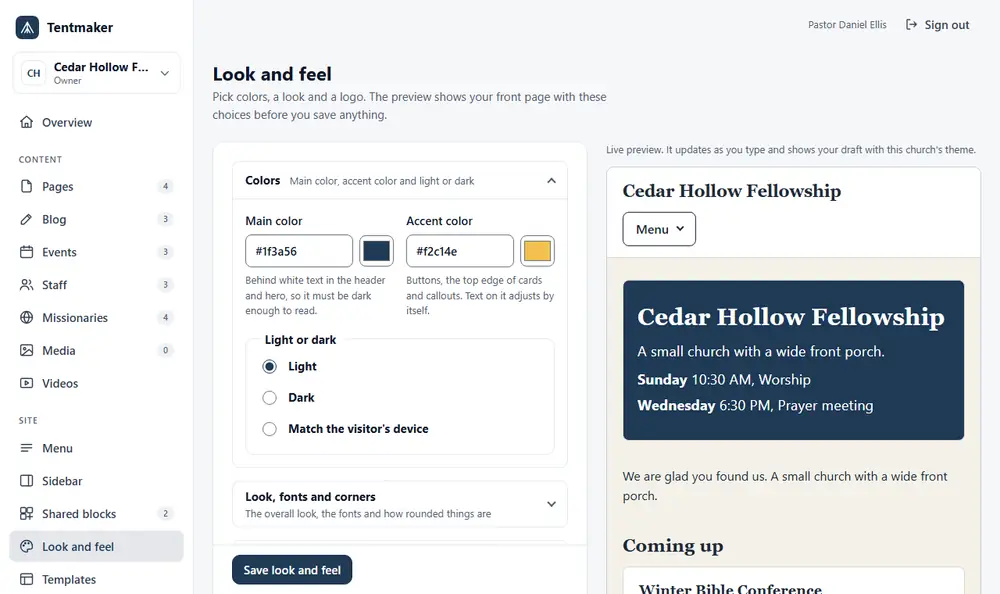
Colors Link to this section: Colors
- Main color is used behind white words in the header and the banner. It must be dark enough to read. If it is too light, Tentmaker tells you and suggests a darker shade. Type a six-digit code that starts with #, or use the color box beside it.
- Accent color is for buttons, the top edge of cards and callouts. Words on it adjust themselves.
- Light or dark: Light, Dark or Match the visitor's device.
Look, fonts and corners Link to this section: Look, fonts and corners
- Look: Ephesus (warm, with serif headings), Corinth (a colored header and rounded cards) or Colossae (plain and quiet). If you have applied a template, this part tells you so, and links to Templates. These three are the first templates (see Templates).
- Fonts: the look's own, Lora headings with Open Sans text, Georgia headings with plain text, or plain text everywhere. Lora and Open Sans are kept on Tentmaker's own servers, so visitors' browsers do not ask any other site for them.
- Corners: the look's own, Square, Slightly rounded or Very rounded.
Header and page Link to this section: Header and page
Choices for the shape of the page: Header style, Page background, Page width, Page content (in a white card, or straight on the page), Footer, Menu words (as you wrote them or small capitals) and Text size and spacing. Each says what it does under it. All are off until you choose them.
Scrolling, motion and focus Link to this section: Scrolling, motion and focus
- Header while scrolling: it can scroll away, stay at the top, or float over the opening banner and turn solid as you scroll. Floating needs a full-width banner with a picture as the first block of the page.
- Phone action bar: turn it on here. Its buttons are set under Settings.
- Blocks as you scroll: they can fade up as they come into view.
- Moving between pages: a plain change, or a soft cross-fade.
Visitors who ask their device for less motion never see motion, and a browser that cannot do it shows the plain version.
Logo Link to this section: Logo
Upload a Logo (optional). PNG, JPEG or WebP, up to 256 KB. SVG files are not accepted. A width of about 600 pixels is plenty. Choosing a file shows it in the preview, and it is saved when you press Save branding. Tick Remove the current logo to remove it.
A Light logo for a dark or floating header (optional) is for a header that is dark. It is usually the white version of your logo.
If something does not save Link to this section: If something does not save
A box at the top says "Nothing was saved yet. Please fix this:" and names each problem. See Common problems.
Related Link to this section: Related
- Templates: a whole look, with an optional menu, sidebar and footer.
- Custom CSS and embeds: for fine control.